Navigating Client and Brand Filters
Blockboard gives users the ability to organize campaigns by clients and then by brands. Assigning a client or a brand to accounts is optional and not required t
Blockboard gives users the ability to organize campaigns by clients and then by brands. Assigning a client or a brand to accounts is optional and not required to run a campaign, though these filters can provide more organizational options for viewing. For example, users can group their reports by clients or brands, instead of simply by campaign.
NoteEach account can have multiple clients. Each client can have multiple brands. Each campaign can be associated with only one brand.
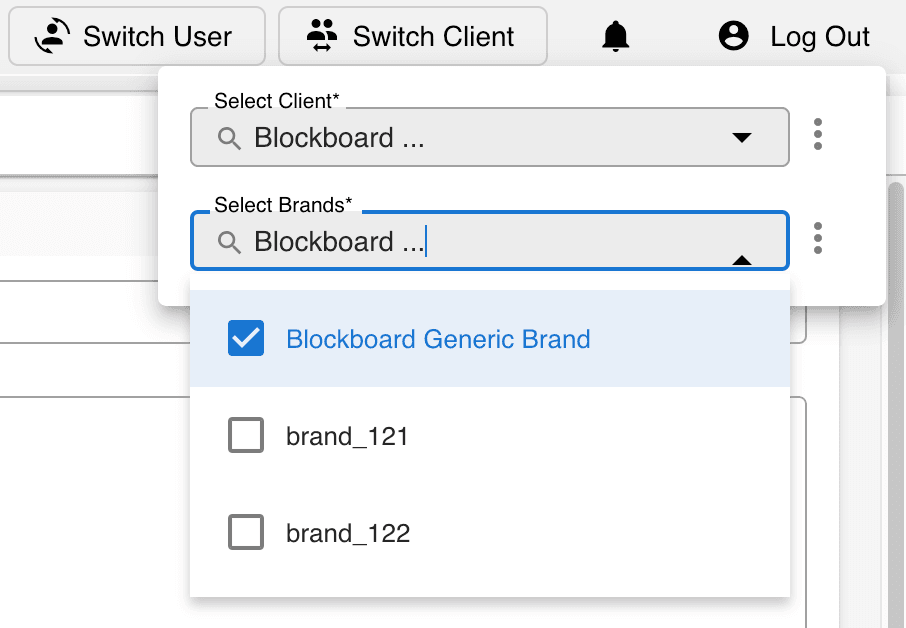
- 1Before creating or selecting a new campaign, find the Switch Clients button in the top right corner of the platform, along the upper bar

- 2Click on the Switch Client button
- 3Under the top dropdown, create a new client or assign a previously created client to your current account. Note: the client chosen here will be associated with any brands selected in the brand drop down below
- 4Then, under the bottom dropdown, create a new brand or assign a previously created brand to your currently selected client. Note: a multiple brands can be assigned a single client AND each client has a discreet list of brands
- 5Now, navigate to the Campaign Manager on the left panel
- 6Navigate to the main Campaign page, by either creating a new campaign or editing a campaign that's already created
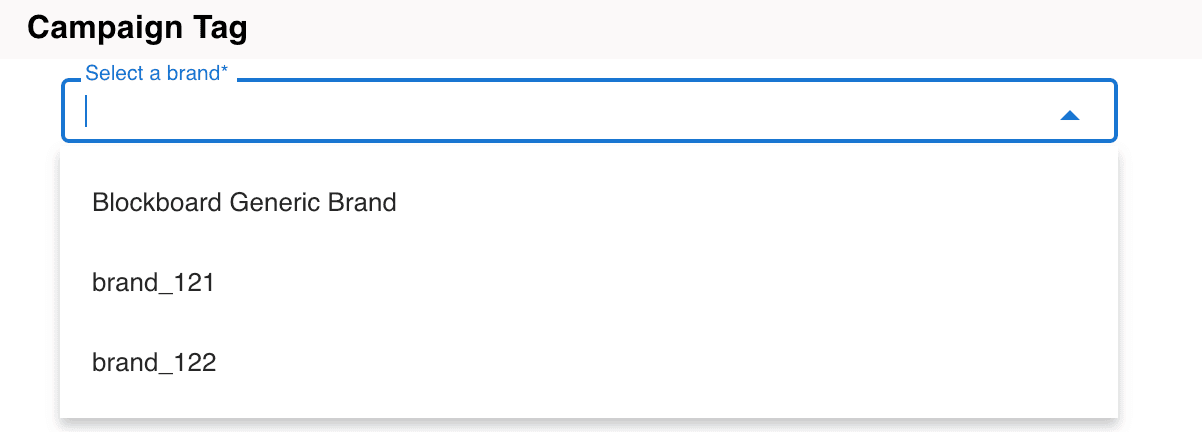
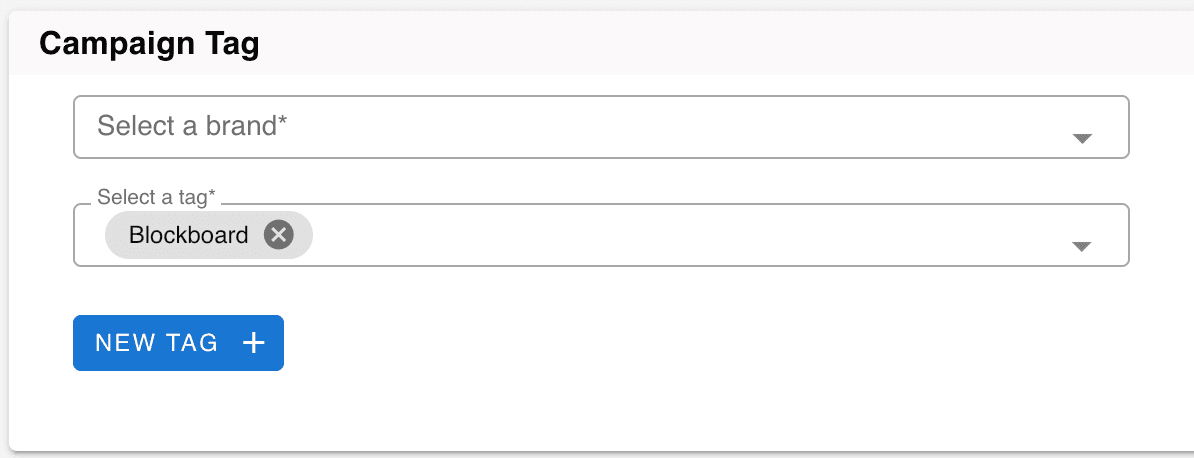
- 7Under the Campaign Tag window, from the brand drop down, select the desired brand for the currently selected campaign. Note: the list of brands will vary depending on the currently selected client

Ready to Transform Your Advertising?
Built for performance marketers, BlockVantage steers every step of your programmatic workflow — from launch to optimization — in just a few clicks.
Get Started Free