Client and Brand Reporting
Previously, users could pull reports for just one campaign at a time. With this new functionality, you can now create reports for multiple campaigns under the s
Previously, users could pull reports for just one campaign at a time. With this new functionality, you can now create reports for multiple campaigns under the same client or across various brands, making reporting faster, easier, and less prone to manual errors.
- 1Go to the Reporting Section Navigate to the Reporting tab in the platform.
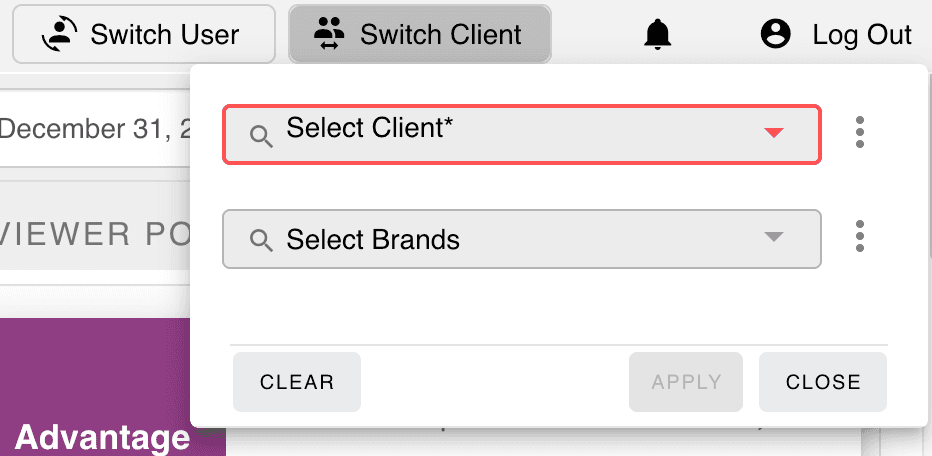
- 2Select Your Client and Brand(s) Click "Switch Client" to choose the appropriate client and one or more brands. Then click Apply.
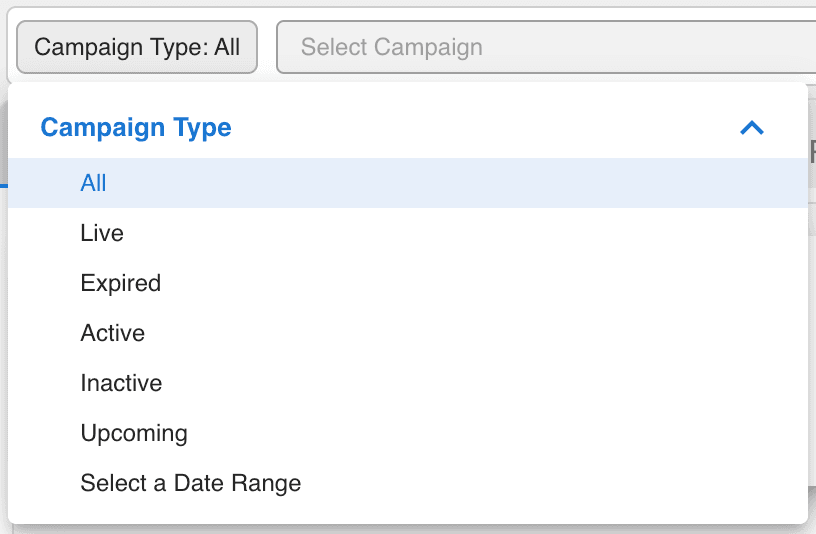
- 3Check the Campaign Type Filter Review the Campaign Type filter to ensure it’s set appropriately. Note: The default setting only shows live campaigns.
- 4Select Campaigns to Include in the Report Open the "Select Campaign" dropdown:
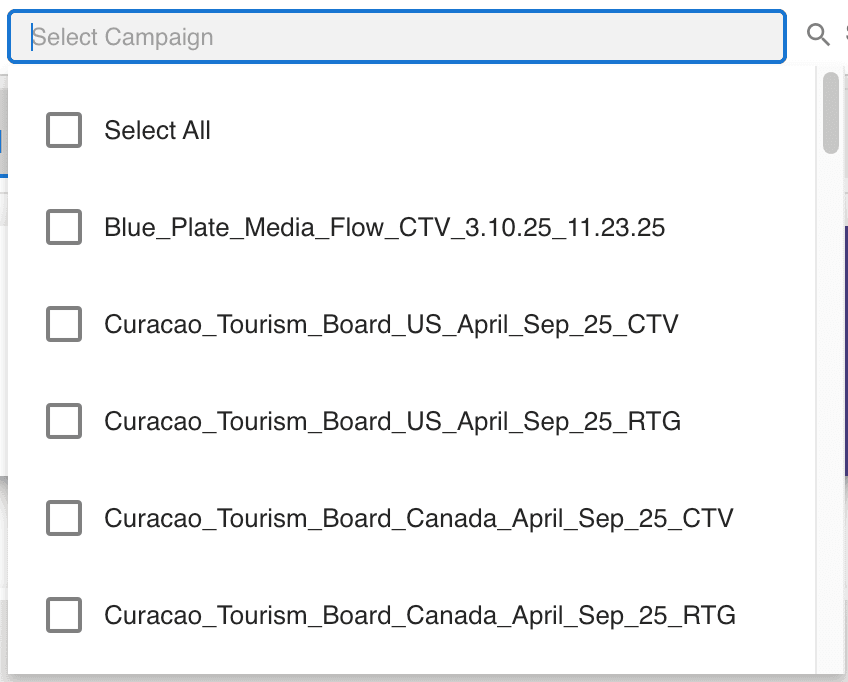
Select any number of live campaigns
Include up to 100 expired campaigns in a single report
Generate Reports Run your Campaign and Blockconnect Attribution Reports as usual—now with broader and more customizable inputs.
Built for performance marketers, BlockVantage steers every step of your programmatic workflow — from launch to optimization — in just a few clicks.
Get Started Free