How to Schedule Reports for delivery
To schedule daily, weekly or monthly reports:
To schedule daily, weekly or monthly reports:
- 1On the Campaign Reports tab, find the Schedule column located to the right of Status, then click the calendar icon associated with the report you would like to schedule for delivery
- 2Click Create New Schedule. A new window will appear (see below)
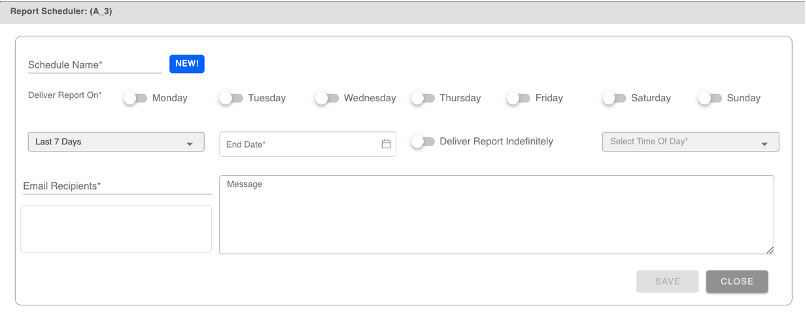
- 3Name your schedule in the Schedule Name field.
- 4Use the toggle buttons to select the days of the week you would like this report to be delivered on.
- 5In Drop down A (See Figure 3), determine the time frame for each scheduled report (Yesterday, Last 7 Days, Last 14 Days, etc). For example, if you select “Last 7 Days”, each scheduled report will gather data from exactly 7 days prior to the scheduled day of delivery
- 6Select an End Date for when you would like report delivery to stop. Select Deliver Report Indefinitely if you do not want to establish an end date
- 7Add all email recipients by typing each email address into the Email Recipients text box, and clicking Enter after each entry
- 8Once finished, click Save then Close to return to the Campaign Report Dashboard

Ready to Transform Your Advertising?
Built for performance marketers, BlockVantage steers every step of your programmatic workflow — from launch to optimization — in just a few clicks.
Get Started Free