How to Implement a Pixel using Google Tag Manager (Optional)
Once you have created your blockconnect pixel(s), you will use the image tag to implement them within Google Tag Manager.
Once you have created your blockconnect pixel(s), you will use the image tag to implement them within Google Tag Manager.
Add your BlockCONNECT pixel to Google Tag Manager
- Log in to your Google Tag Manager account.
- Go to the "Tags" section and click on "New."
- Name your tag appropriately, like "Video View Hit."
Choose Tag Configuration
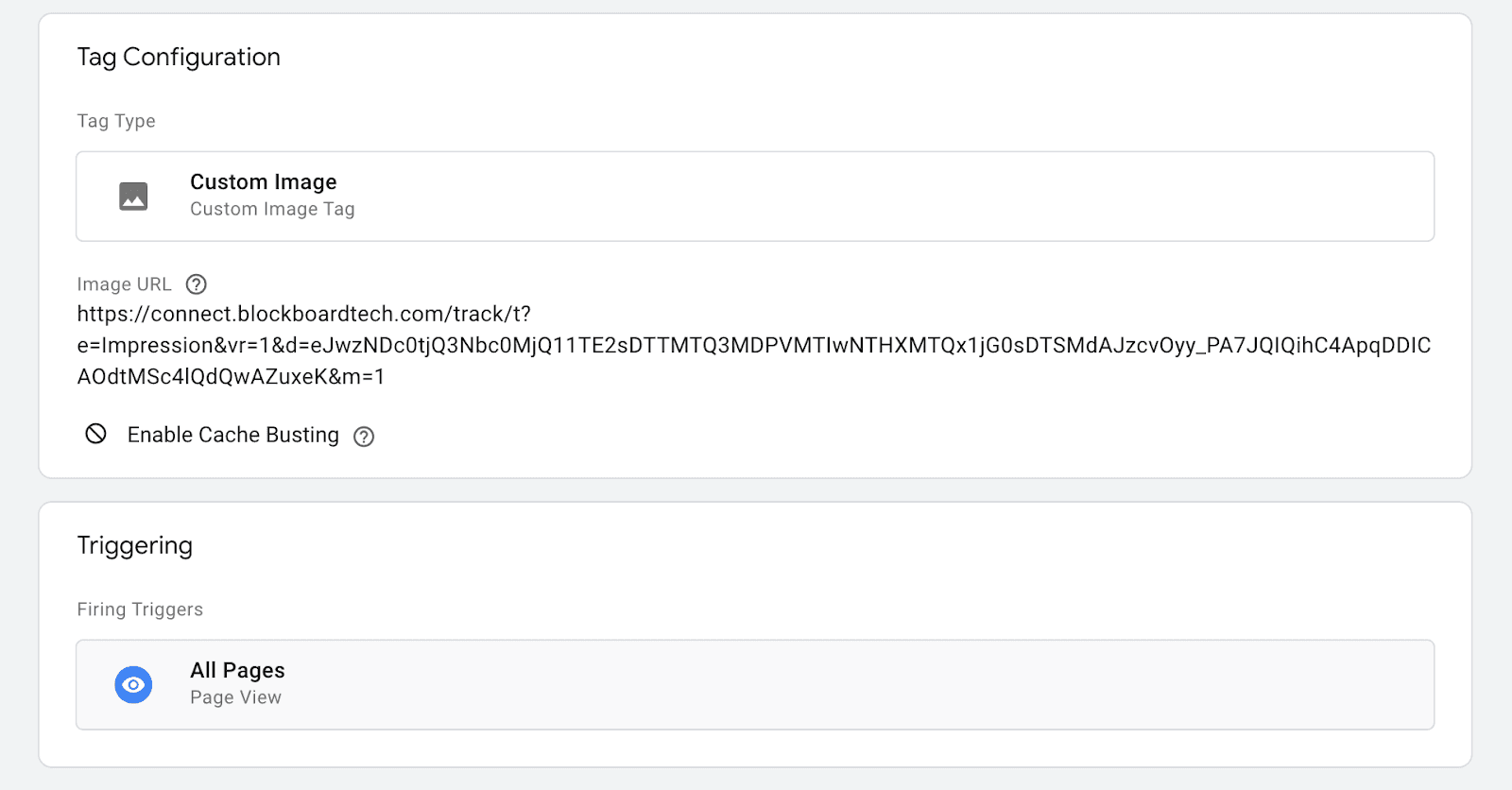
Click on "Tag Configuration" and select "Custom Image Tag."
Add URL: In the "Image URL" field, enter the URL you want to hit behind the scenes
Configure Trigger
- Click on "Triggering" and select "New" to create a new trigger
- Name your trigger, such as "Video View Trigger."
- Choose the trigger type “Page View”
- Save your trigger
Save Tag and submit changes
- Once you've configured the tag and trigger, save the tag.
- After saving the tag, you'll need to submit your changes to Google Tag Manager.
Ready to Transform Your Advertising?
Built for performance marketers, BlockVantage steers every step of your programmatic workflow — from launch to optimization — in just a few clicks.
Get Started Free