Google Analytics 4 (GA4) Integration
Send a pixel group's conversions to your Google Analytics 4 property — get your measurement ID and API secret from GA4 and connect them in the group's settings.
The Google Analytics 4 integration sends the conversions BlockConnect records for a pixel group to your GA4 property, so you can see them alongside the rest of your website analytics. Blockboard sends them from its own servers using GA4's Measurement Protocol, so there's no extra code to add to your site — you connect GA4 with two keys from your GA4 data stream: the measurement ID and an API secret.
GA4 is set up per pixel group, so conversions from every campaign linked to the group go to the same GA4 property.
Before You Start
You'll also need:
- An Attribution pixel group for your website. Integrations aren't available on Audience tracking groups, and a group's type can't be changed after it's created.
- A GA4 web data stream for the same website — both keys come from it.
- Editor access or higher on the GA4 property. Google requires it to create an API secret.
- Pixels installed on your site. GA4 receives the conversions the group's pixels record, so nothing is sent until a pixel is tracking.
Getting Your Keys From GA4
Measurement ID
- 1In Google Analytics, click Admin (the gear icon at the bottom left).
- 2Under Data collection and modification, click Data streams.
- 3Click Web, then click your website's data stream.
- 4Copy the Measurement ID from the stream details. It starts with G- (for example, G-AB12CD34EF).
API Secret
- 1On the same data stream's page, click Measurement Protocol API secrets.
- 2If Google asks, review and accept the User Data Collection Acknowledgement.
- 3Click Create, give the secret a nickname you'll recognize (for example, "Blockboard"), and click Create again.
- 4Copy the secret's Secret value.
Connecting GA4 to a Pixel Group
GA4 is switched on in the pixel group's settings, either when you create the group or later:
- 1In BlockConnect, click Create pixel group for a new group, or Edit on an existing group's card. The New pixel group or Pixel group settings window opens.
- 2Scroll down to Integrations and switch on Google Analytics 4.
- 3Paste your measurement ID into GA4 measurement ID and your API secret into GA4 secret key.
- 4Click Save — or, for a new group, Create pixel group (Create & add pixel if the group has no universal pixel).
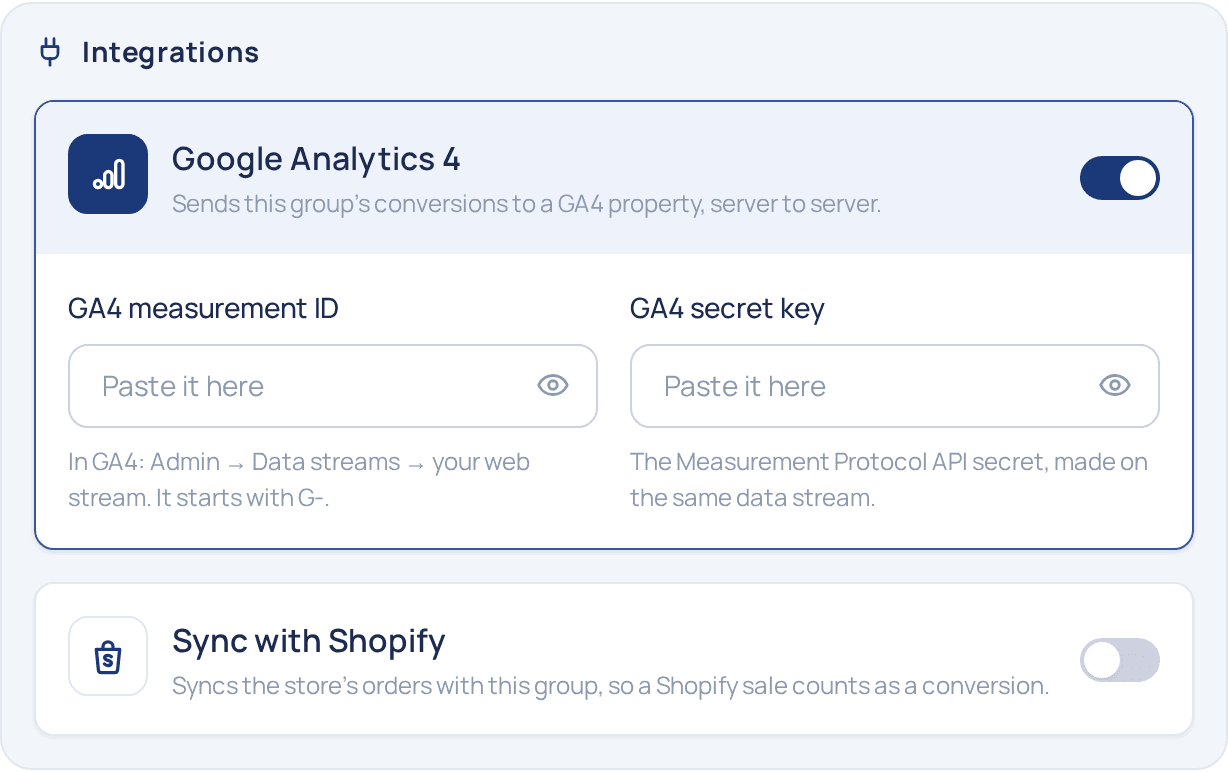
Both keys are masked as you paste them — click the eye icon in a field to show or hide it. Each key's format is checked when you leave its field, and the group won't save with one that's malformed.
Finishing Setup Later
You don't need the keys to save. If you switch on GA4 without them, the group saves and GA4 is marked as not finished until both keys are added — nothing is sent to GA4 until then.
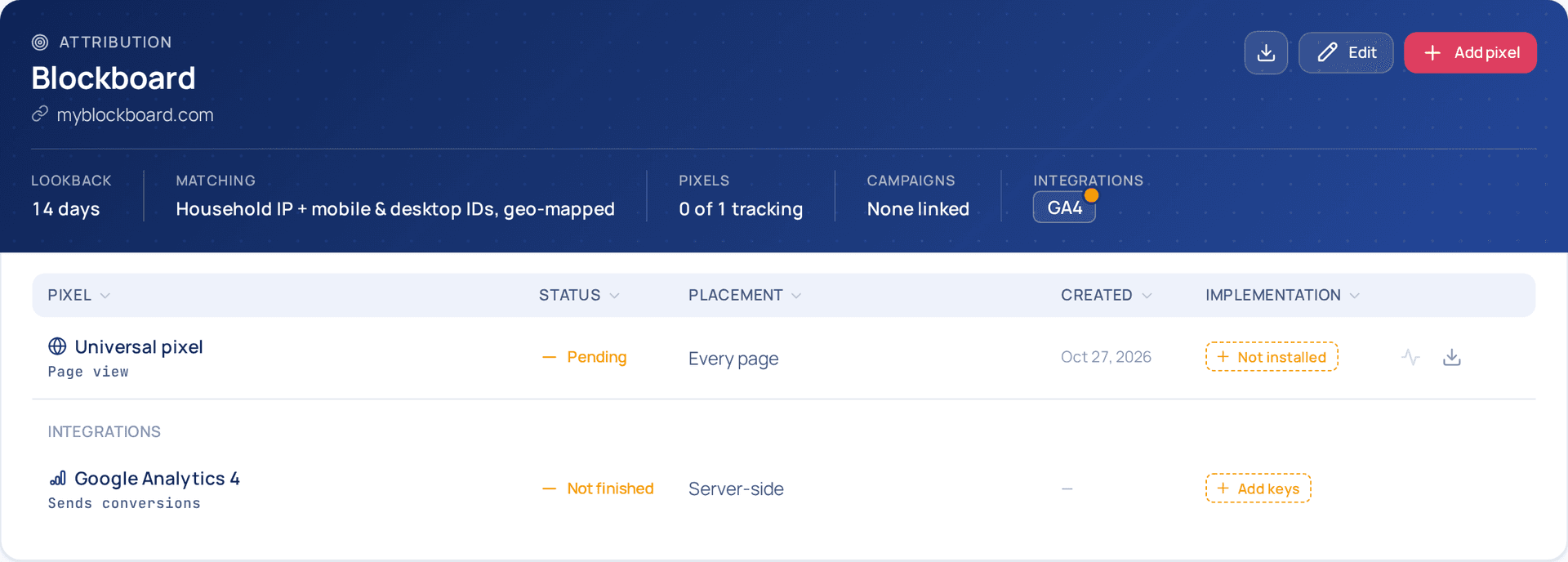
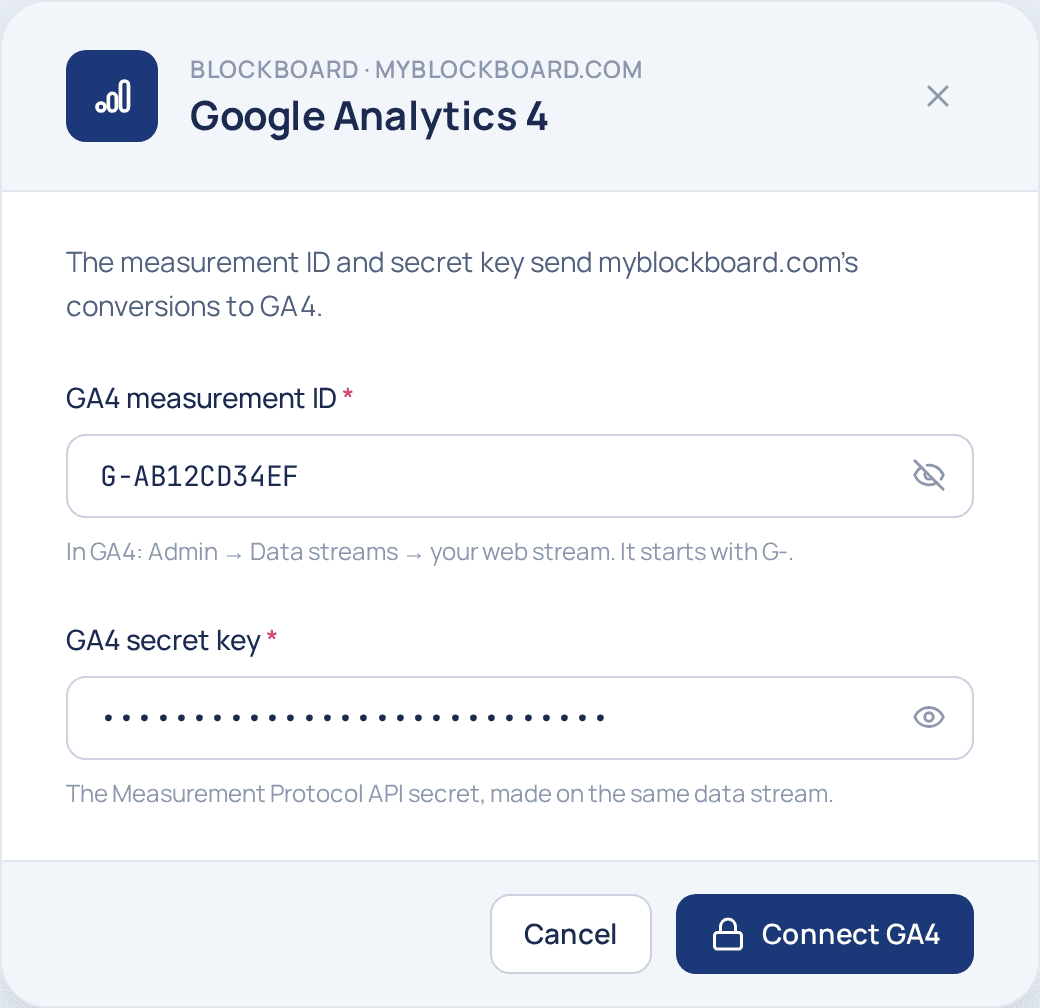
To finish, click Add keys on the Google Analytics 4 row (or the GA4 tag at the top of the card). Paste both keys into the Google Analytics 4 window and click Connect GA4.
Checking Your Connection
Once GA4 is set up, it shows in two places on the pixel group's card:
- The GA4 tag under Integrations, at the end of the group's details beside Lookback, Matching, Pixels and Campaigns — with an amber dot while setup isn't finished, and a green check once GA4 is connected.
- The Google Analytics 4 row under Integrations, below the group's pixels.
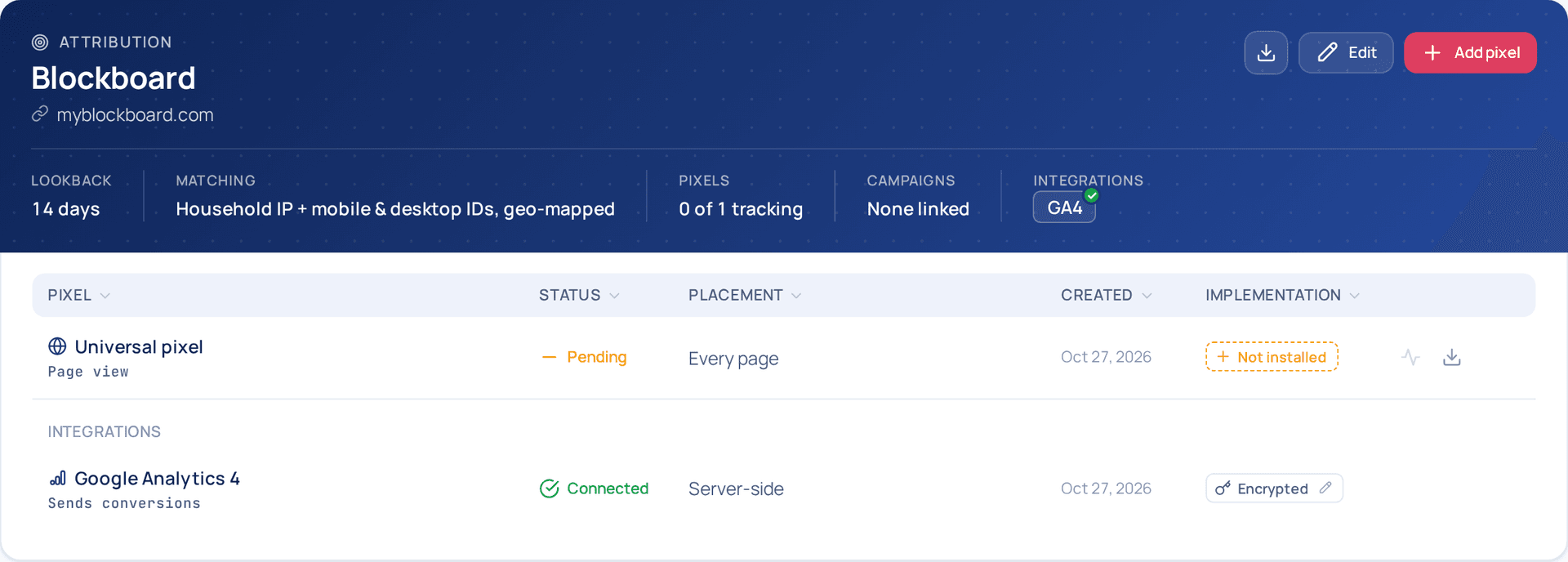
| Column | What it shows |
|---|---|
| Status | Connected once both keys are saved, or Not finished while one is missing |
| Placement | Server-side — conversions are sent from Blockboard's servers, not from your website |
| Created | The date the keys were last saved |
| Implementation | Encrypted when both keys are saved, or Add keys when one is missing. Click it to view or change the keys. |
Built for performance marketers, BlockVantage steers every step of your programmatic workflow — from launch to optimization — in just a few clicks.
Get Started Free