Bulk Upload of Creatives
Users can upload multiple hosted video files to the platform at the same time. This allows the user to:
Users can upload multiple hosted video files to the platform at the same time. This allows the user to:
- Save Time: Upload multiple creatives at once, cutting down setup time during this hectic season.
- Streamlined Setup: Assign clickthrough URLs, add event tracking, and apply all settings under one simplified view.
- Ensure Consistency: Applying multiple ad settings at once protects your campaign against errors and forgotten details.
.1. Navigate to the Audience Builder on the left panel.
- 1Create a new campaign or edit an existing one.
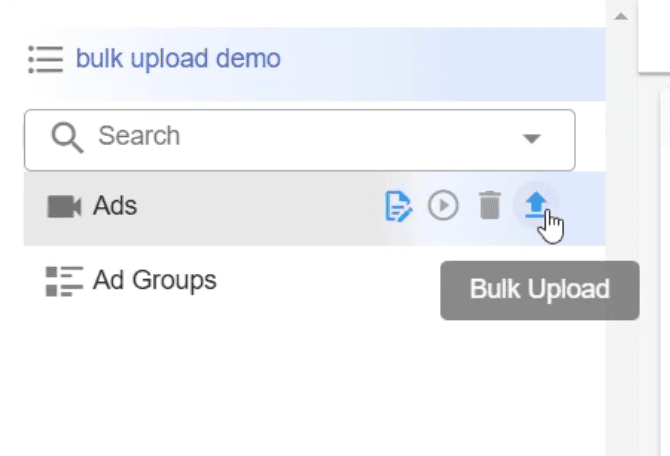
- 2Navigate to the left, Campaign Panel and select the icon for Bulk Upload.
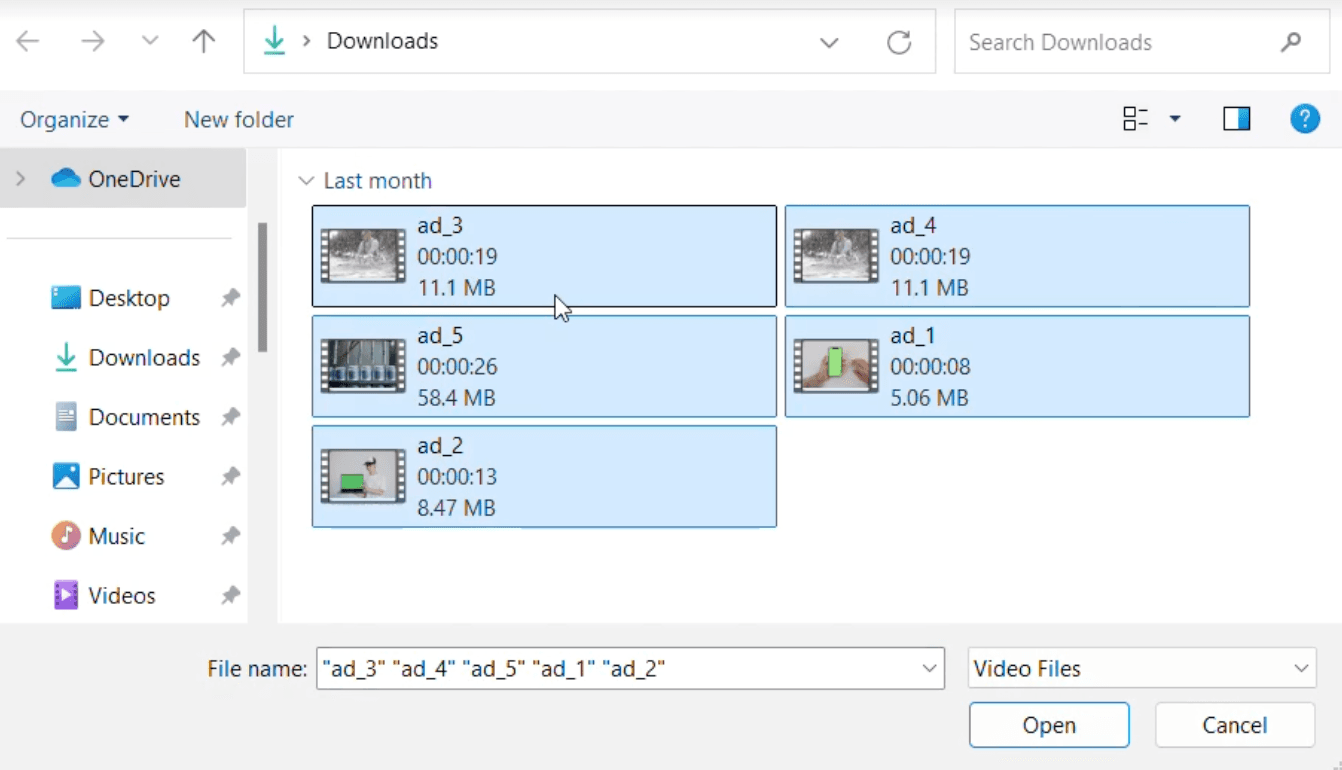
- 3Select and confirm multiple files to upload (maximum of 20 files at a time). See technical specifications for the allowed file format.
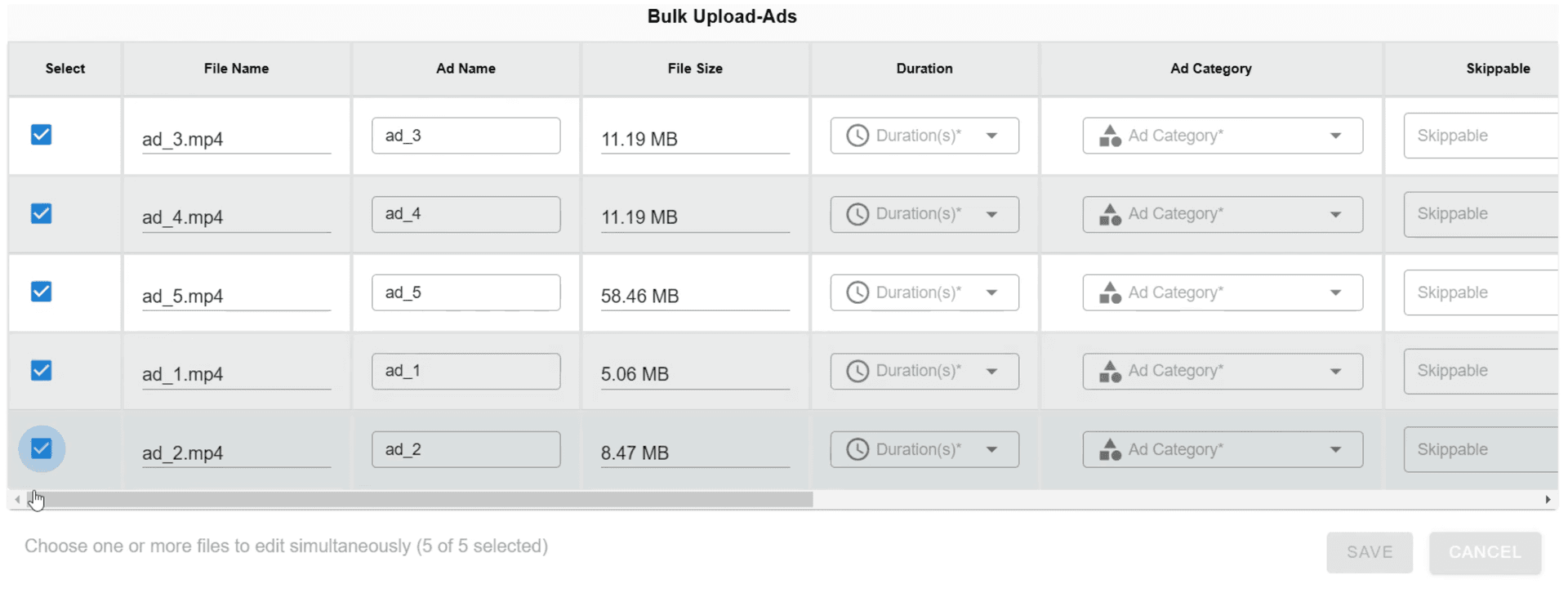
- 4In the new window, choose your selections for each file.
- 5To edit multiple files at the same time, first, select the files you want to edit with the checkboxes on the left
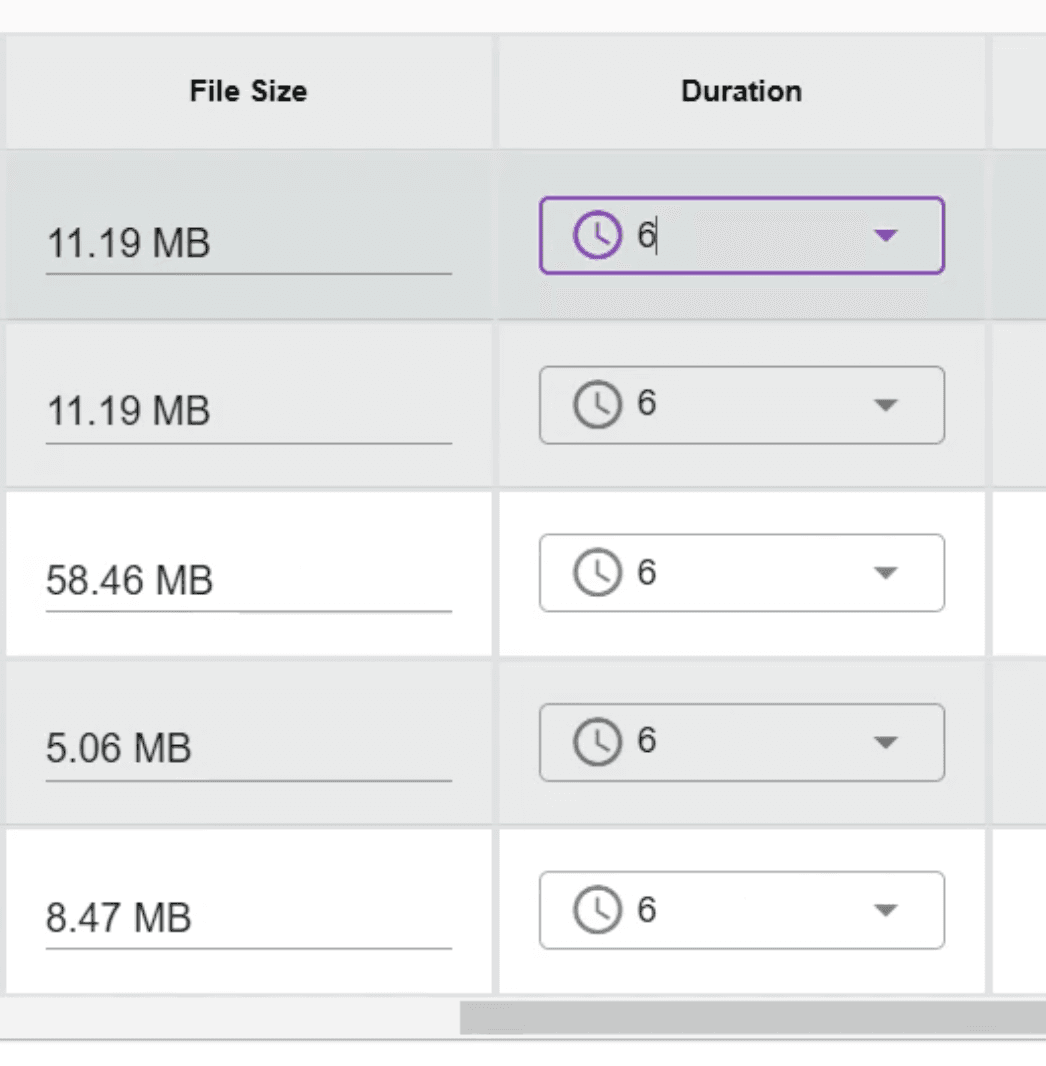
- 6Each entry or selection made to one file will also propagate on each file that was checked
- 7In order to add an event, make sure Yes is selected in the Event Tracking column. Adding events are optional.
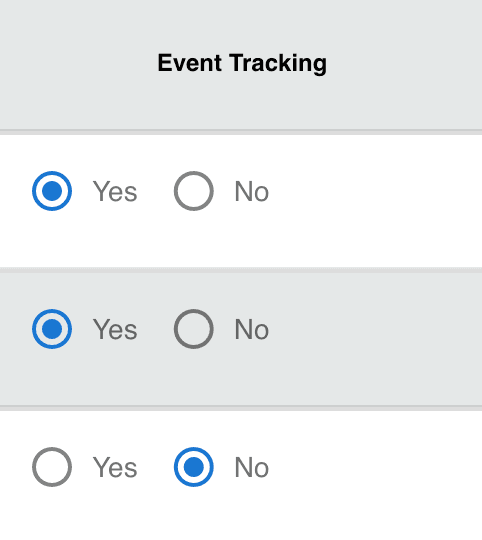
- 8Then, enter events and urls at the bottom of the page and ALL the files marked with YES will have that event applied to them. Add another event by clicking the ADD EVENT button.

- 9If a selection is red, that means it needs to be filled out correctly before saving.
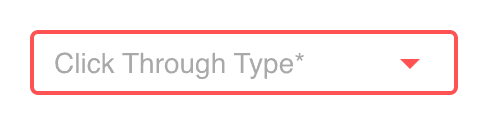
- 10When all the necessary entries are made for each file, the Save button will be available to engage. If mandatory fields for any selected file is missing, there will not be an option to Save
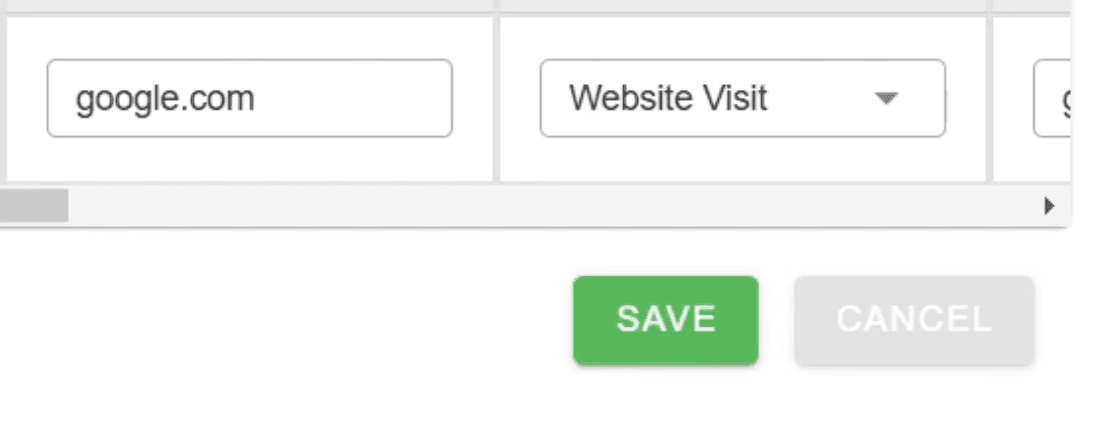
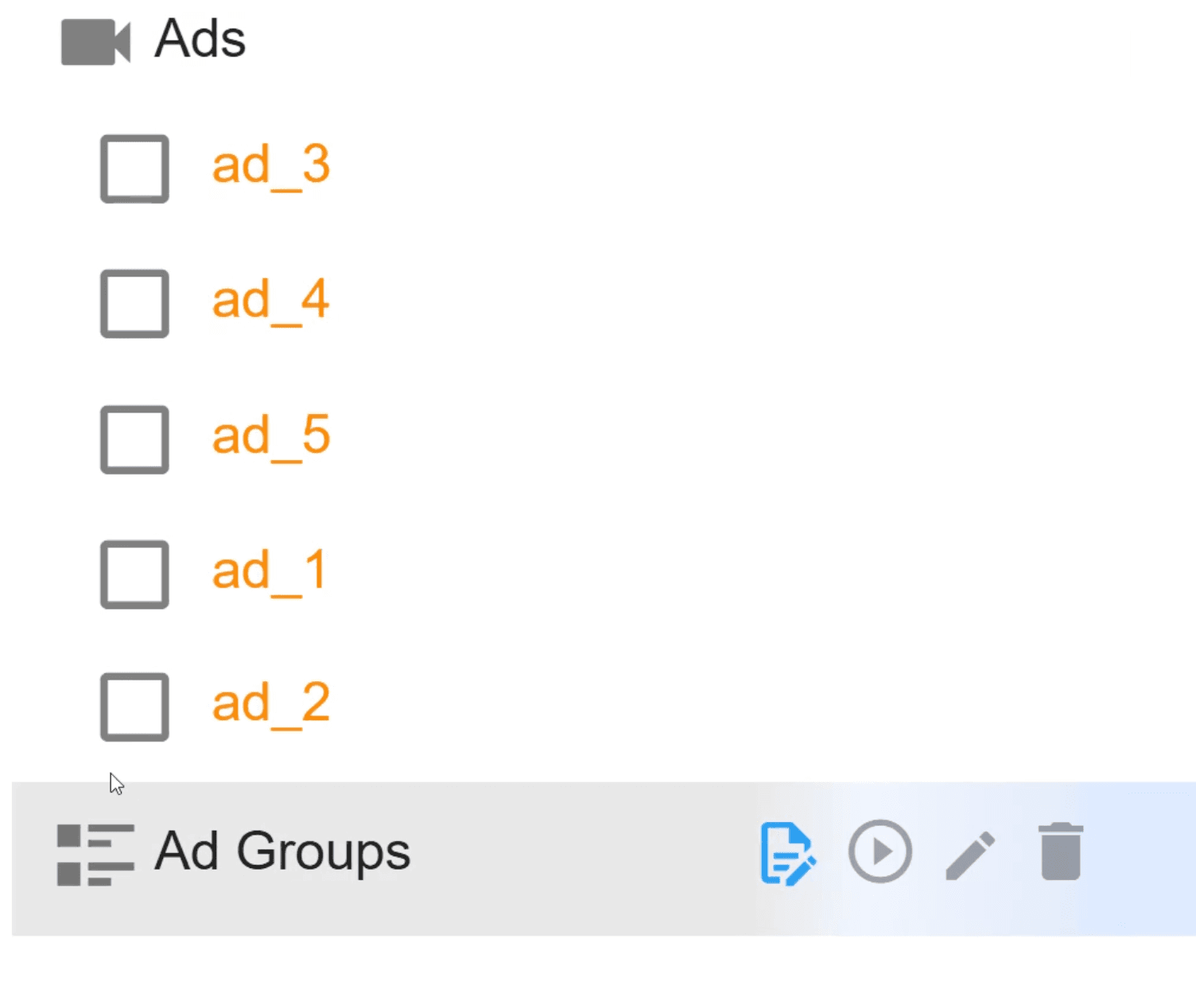
- 11The new files will be viewable in the Campaign Panel on the left of the screen and ready to be used in the campaign

Ready to Transform Your Advertising?
Built for performance marketers, BlockVantage steers every step of your programmatic workflow — from launch to optimization — in just a few clicks.
Get Started Free